加载中…
创作者 · MotionSites
查看原始来源 ↗
Prompt
使用 React + Vite + Tailwind CSS v4 + Motion (framer-motion) + Lucide React icons + hls.js 构建一个全屏深色 hero section 落地页。页面应为单屏(100vh,无滚动),采用黑色背景、全屏背景视频、glassmorphism navbar,以及包含电子邮件收集 CTA 的居中 hero。
>
> **依赖项:** `react`、`react-dom`、`motion`、`hls.js`、`lucide-react`、使用 `@tailwindcss/vite` 的 `tailwindcss` v4、`@vitejs/plugin-react`
>
> **字体:** 导入 Google Fonts:
> - `Inter`(字重 300、400、500、600)——用作基础无衬线字体
> - `Instrument Serif`(常规体和斜体)——用于 hero 标题
>
> **CSS(`index.css`):**
> - 导入两个 Google Font URL,然后添加 `@import "tailwindcss";`
> - 设置 `@theme { --font-sans: "Inter", ui-sans-serif, system-ui, sans-serif; }`
> - `:root` 变量:`--background: #000000; --foreground: #ffffff;`
> - `body`:background-color var(--background)、color var(--foreground)、font-family var(--font-sans)、`-webkit-font-smoothing: antialiased`、`letter-spacing: -0.01em`
> - `.liquid-glass` class:`background: rgba(255,255,255,0.01)`、`background-blend-mode: luminosity`、`backdrop-filter: blur(4px)`、`-webkit-backdrop-filter: blur(4px)`、`border: none`、`box-shadow: inset 0 1px 1px rgba(255,255,255,0.1)`、`position: relative`、`overflow: hidden`。它包含一个用于渐变边框效果的 `::before` pseudo-element:`padding: 1.4px`、`background: linear-gradient(180deg, rgba(255,255,255,0.45) 0%, rgba(255,255,255,0.15) 20%, rgba(255,255,255,0) 40%, rgba(255,255,255,0) 60%, rgba(255,255,255,0.15) 80%, rgba(255,255,255,0.45) 100%)`,并使用 `-webkit-mask: linear-gradient(#fff 0 0) content-box, linear-gradient(#fff 0 0)` 和 `-webkit-mask-composite: xor; mask-composite: exclude;` 进行遮罩处理
> - `.glass-pill` class:`background: rgba(255,255,255,0.04)`、`backdrop-filter: blur(16px) saturate(180%)`、`border-radius: 9999px`、`box-shadow: none !important`
>
> **背景视频组件:**
> - 渲染一个覆盖整个父元素的绝对定位 `<div>`(`absolute inset-0 overflow-hidden pointer-events-none`)
> - 包含一个 `<video>` 元素:`autoPlay`、`muted`、`loop`、`playsInline`,classes 为 `w-full h-full object-cover opacity-100`
> - 视频源 URL:`https://stream.mux.com/kimF2ha9zLrX64H00UgLGPflCzNtl1T0215MlAmeOztv8.m3u8`(这是来自 Mux 的 HLS stream,不是 CloudFront)
> - 使用 `hls.js`:如果浏览器原生支持 HLS(`video.canPlayType("application/vnd.apple.mpegurl")`),直接设置 `video.src`;否则实例化 `new Hls()`,并调用 `loadSource`、`attachMedia`
>
> **Navbar 组件:**
> - 使用 `motion.nav` 入场动画:`initial={{ y: -20, opacity: 0 }}`、`animate={{ y: 0, opacity: 1 }}`
> - Classes:`relative z-20 px-6 py-6 w-full`
> - 内部容器:`liquid-glass rounded-full px-6 py-3 flex items-center justify-between max-w-5xl mx-auto`
> - 左侧(`flex items-center gap-8`):
>   - Logo:来自 lucide-react 的 `Globe` icon(w-6 h-6 text-white)+ “Asme”文本(`text-white font-semibold text-lg`),放在 `flex items-center gap-2` wrapper 中
>   - Nav links:“功能”、“定价”、“关于”——在移动端隐藏(`hidden md:flex`),使用 `items-center gap-8 text-white/80 text-sm font-medium`,每个链接均包含 `hover:text-white transition-colors duration-300`
> - 右侧(`flex items-center gap-4`):
>   - “注册”纯文本按钮:`text-white hover:text-white/80 transition-colors text-sm font-medium cursor-pointer`
>   - “登录”glassmorphism 按钮:`liquid-glass rounded-full px-6 py-2 text-sm font-medium text-white hover:opacity-90 transition-opacity cursor-pointer`
>
> **Hero 组件:**
> - `<section>` 使用 `relative flex-1 flex flex-col items-center justify-center px-6`
> - 内容 wrapper:`relative z-10 text-center max-w-5xl mx-auto flex flex-col items-center justify-center w-full gap-12`
> - **Tagline**(motion.p):文本“几分钟内构建无代码 AI 应用”,`text-white/80 text-[10px] md:text-[11px] font-medium tracking-[0.2em] uppercase mb-4`,动画为 `initial={{ opacity: 0, y: 10 }}`、`animate={{ opacity: 1, y: 0 }}`、`transition={{ delay: 0.1 }}`
> - **Heading**(motion.h1):文本“用计算机思考和创造的新方式”(在“创造”后添加 `<br className="hidden md:block" />`),通过 inline style 设置 `fontFamily: "'Instrument Serif', serif"`,classes 为 `text-4xl md:text-[64px] font-medium tracking-[-0.01em] leading-[1.1] mb-6 bg-gradient-to-b from-white via-white/95 to-white/70 bg-clip-text text-transparent max-w-4xl`,动画为 `initial={{ opacity: 0, y: 20 }}`、`animate={{ opacity: 1, y: 0 }}`、`transition={{ duration: 1, ease: [0.16, 1, 0.3, 1] }}`
> - **CTA 区域**(motion.div):`min-h-[50px] mt-2`,使用 `delay: 0.4` 的动画。使用 `AnimatePresence mode="wait"` 在以下状态之间切换:
>   - **按钮状态**:“获取抢先体验资格”——`px-10 py-3 text-[14px] font-medium border border-white/10 rounded-full hover:border-white/30 hover:bg-white/[0.02] transition-all duration-300 text-white/90 backdrop-blur-sm cursor-pointer`。点击后切换到电子邮件表单。
>   - **电子邮件表单状态**:一个 `<form>`,使用 `flex items-center gap-2 pl-5 pr-1.5 py-1.5 text-[14px] font-medium border border-white/20 rounded-full bg-white/[0.02] backdrop-blur-sm w-full max-w-[320px] focus-within:border-white/40 transition-colors duration-300`。其中包含一个电子邮件 `<input>`(透明背景、白色文本、`placeholder-white/45`、`autoFocus`)和一个提交按钮,按钮显示 `ArrowRight` icon(默认)或 `Check` icon(提交后)。两种状态均以 0.2s duration 从 scale 0.95 动画过渡到 1。
>   - **打字机 placeholder**:电子邮件表单打开后,placeholder 文本“Enter Your Email Here For Early Access”以 60ms 的间隔逐字符输入。提交后,改为输入“You Will Receive Notifications By Email”。4 秒后,重置回按钮状态。
> - 下方的 **“播放视频演示”** 链接(带 `delay: 0.8` 淡入效果的 motion.div):`text-white/80 hover:text-white/40 transition-colors duration-300 text-[13px] font-medium tracking-wide`
>
> **App 根布局:**
> - `<main>` 使用 `relative bg-black h-screen w-screen flex flex-col overflow-hidden selection:bg-white selection:text-black shrink-0`
> - 渲染顺序:`BackgroundVideo`、`Navbar`、`Hero`
> - 文本选中样式为白色背景和黑色文本

---

关键说明:视频 URL **不是**来自 CloudFront。它是托管在 **Mux** 上的 HLS stream:`https://stream.mux.com/kimF2ha9zLrX64H00UgLGPflCzNtl1T0215MlAmeOztv8.m3u8`。对于非 Safari 浏览器,`.m3u8` 格式需要 hls.js。适用模型与稳定度
建议模型
继续探索

@Oluwaphilemon1 使用 Claude Fable 5 · Three.js · Blender · GSAP完成的网页案例,包含公开结果、完整 Prompt 与原始来源。
提示语
Claude Fable 5 和 GPT-5.6 很强🥵🥵🥵 下面是我如何使用 Claude 构建的 👇 提示词:「设计一个机构网站,把服务以 3D 超市商品包装的形式呈现」 使用 Three.js 和 WebGL 在浏览器中实时渲染所有产品 使用 Blender 制作包装模型,然后导出为 GLTF 以加载到 Three.js 中 使用 GSAP 实现流畅的产品旋转和悬停交互 如果你想做一个让客户感觉像是在购买高级商品的作品集,请保存这条 🛒
复制这段 TSX 组件源码,交给 Cursor、v0、Claude 等 AI 编程工具,说明这是「3D Animated Pin」的 Aceternity UI 组件实现,即可让它接入你的 React 项目,再按需替换文案、配色与触发参数复用。
提示语
// components/ui/3d-pin.tsx "use client"; import React, { useState } from "react"; import { motion } from "motion/react"; import { cn } from "@/lib/utils"; export const PinContainer = ({ children, title, href, className, containerClassName…
提示语
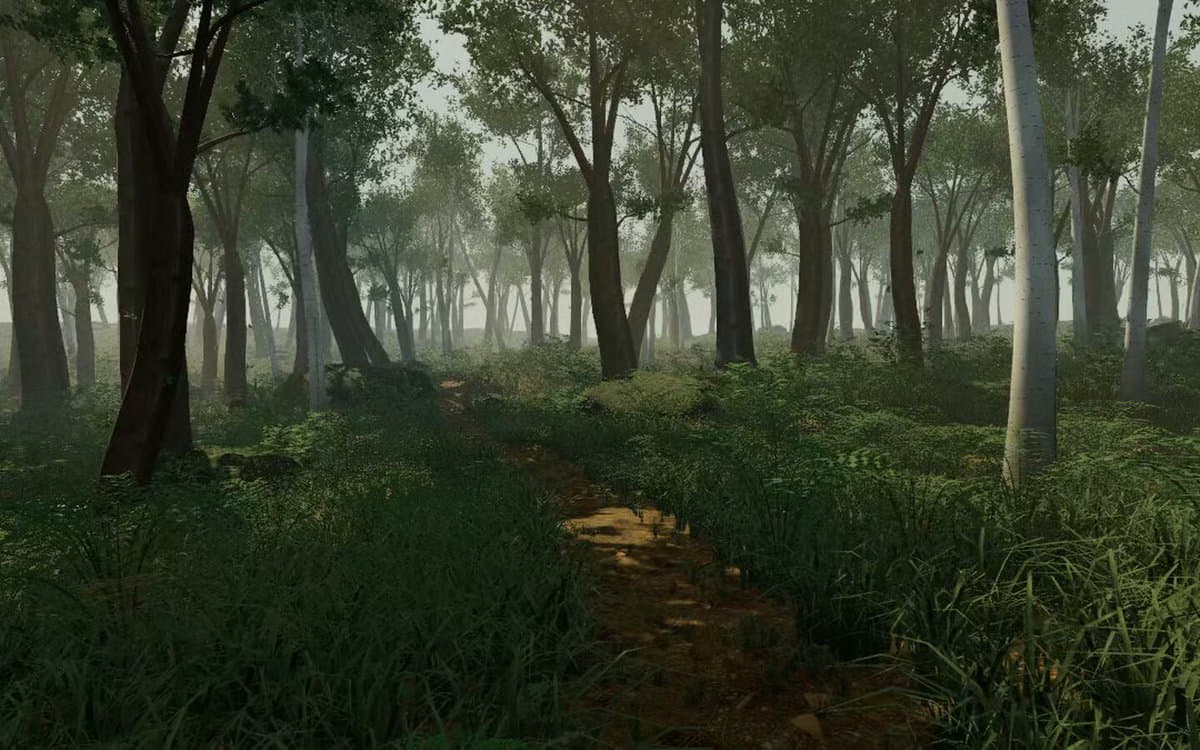
首先搜索 "/unlazy" skill,完整阅读它,并在整个任务中持续使用。 将此视为一项至少持续 {argument name="minimum duration" default="5 小时"} 的大型视觉构建。如果环境允许,最好进行 {argument name="optimal duration" default="8–24 小时"} 有实质意义的实现和迭代。不要在制作出一个还不错的场景后就停下。 在浏览器中创建一个细节极其丰富的实时 {argument nam