加载中…
创作者 · Aceternity UI
查看原始来源 ↗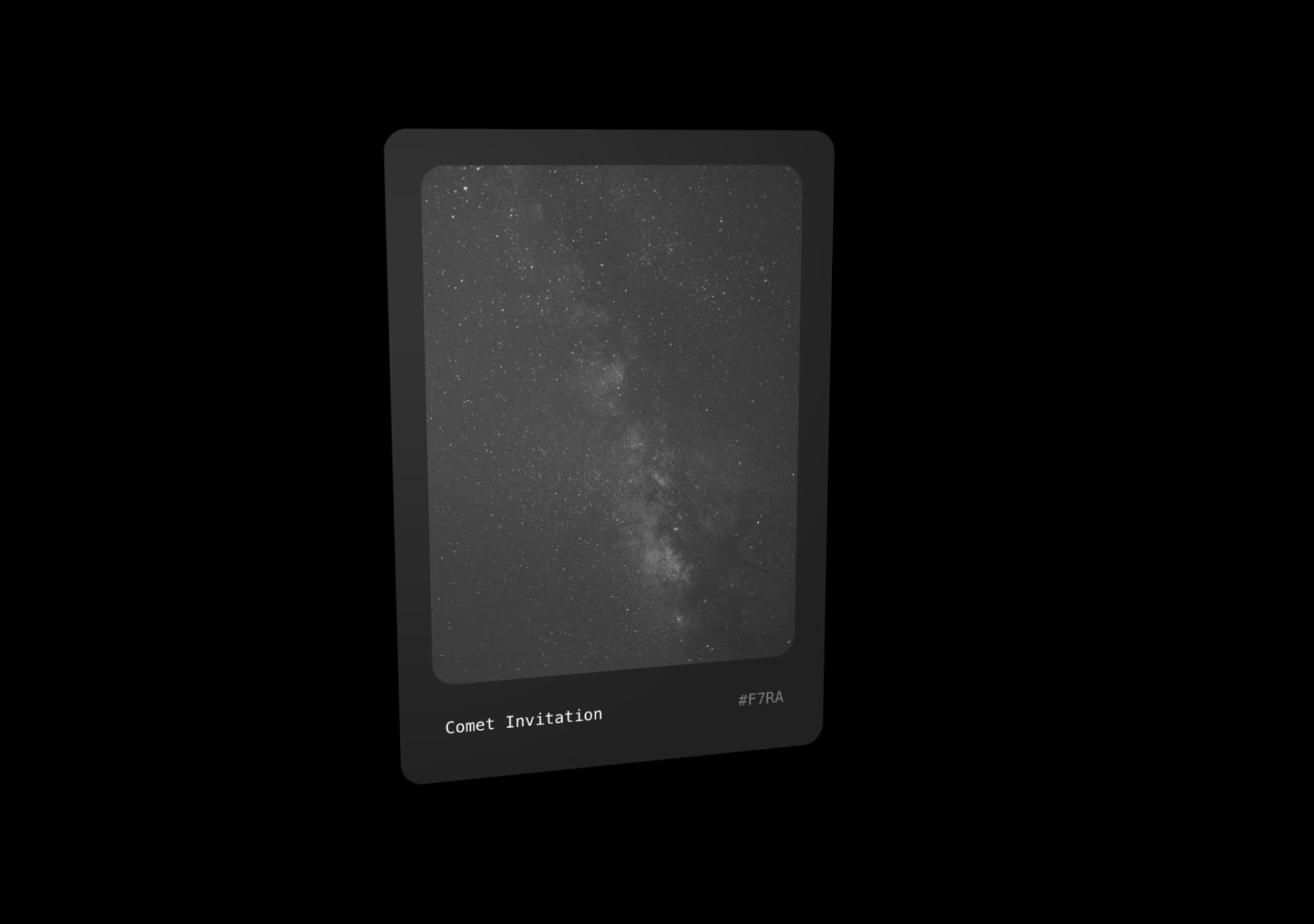
Prompt
// components/ui/comet-card.tsx
"use client";
import React, { useRef } from "react";
import {
  motion,
  useMotionValue,
  useSpring,
  useTransform,
  useMotionTemplate,
} from "motion/react";
import { cn } from "@/lib/utils";

export const CometCard = ({
  rotateDepth = 17.5,
  translateDepth = 20,
  className,
  children,
}: {
  rotateDepth?: number;
  translateDepth?: number;
  className?: string;
  children: React.ReactNode;
}) => {
  const ref = useRef<HTMLDivElement>(null);

  const x = useMotionValue(0);
  const y = useMotionValue(0);

  const mouseXSpring = useSpring(x);
  const mouseYSpring = useSpring(y);

  const rotateX = useTransform(
    mouseYSpring,
    [-0.5, 0.5],
    [`-${rotateDepth}deg`, `${rotateDepth}deg`],
  );
  const rotateY = useTransform(
    mouseXSpring,
    [-0.5, 0.5],
    [`${rotateDepth}deg`, `-${rotateDepth}deg`],
  );

  const translateX = useTransform(
    mouseXSpring,
    [-0.5, 0.5],
    [`-${translateDepth}px`, `${translateDepth}px`],
  );
  const translateY = useTransform(
    mouseYSpring,
    [-0.5, 0.5],
    [`${translateDepth}px`, `-${translateDepth}px`],
  );

  const glareX = useTransform(mouseXSpring, [-0.5, 0.5], [0, 100]);
  const glareY = useTransform(mouseYSpring, [-0.5, 0.5], [0, 100]);

  const glareBackground = useMotionTemplate`radial-gradient(circle at ${glareX}% ${glareY}%, rgba(255, 255, 255, 0.9) 10%, rgba(255, 255, 255, 0.75) 20%, rgba(255, 255, 255, 0) 80%)`;

  const handleMouseMove = (e: React.MouseEvent<HTMLDivElement>) => {
    if (!ref.current) return;

    const rect = ref.current.getBoundingClientRect();

    const width = rect.width;
    const height = rect.height;

    const mouseX = e.clientX - rect.left;
    const mouseY = e.clientY - rect.top;

    const xPct = mouseX / width - 0.5;
    const yPct = mouseY / height - 0.5;

    x.set(xPct);
    y.set(yPct);
  };

  const handleMouseLeave = () => {
    x.set(0);
    y.set(0);
  };

  return (
    <div className={cn("perspective-distant transform-3d", className)}>
      <motion.div
        ref={ref}
        onMouseMove={handleMouseMove}
        onMouseLeave={handleMouseLeave}
        style={{
          rotateX,
          rotateY,
          translateX,
          translateY,
          boxShadow:
            "rgba(0, 0, 0, 0.01) 0px 520px 146px 0px, rgba(0, 0, 0, 0.04) 0px 333px 133px 0px, rgba(0, 0, 0, 0.26) 0px 83px 83px 0px, rgba(0, 0, 0, 0.29) 0px 21px 46px 0px",
        }}
        initial={{ scale: 1, z: 0 }}
        whileHover={{
          scale: 1.05,
          z: 50,
          transition: { duration: 0.2 },
        }}
        className="relative rounded-2xl"
      >
        {children}
        <motion.div
          className="pointer-events-none absolute inset-0 z-50 h-full w-full rounded-[16px] mix-blend-overlay"
          style={{
            background: glareBackground,
            opacity: 0.6,
          }}
          transition={{ duration: 0.2 }}
        />
      </motion.div>
    </div>
  );
};适用模型与稳定度
建议模型
继续探索

@Oluwaphilemon1 使用 Claude Fable 5 · Three.js · Blender · GSAP完成的网页案例,包含公开结果、完整 Prompt 与原始来源。
提示语
Claude Fable 5 和 GPT-5.6 很强🥵🥵🥵 下面是我如何使用 Claude 构建的 👇 提示词:「设计一个机构网站,把服务以 3D 超市商品包装的形式呈现」 使用 Three.js 和 WebGL 在浏览器中实时渲染所有产品 使用 Blender 制作包装模型,然后导出为 GLTF 以加载到 Three.js 中 使用 GSAP 实现流畅的产品旋转和悬停交互 如果你想做一个让客户感觉像是在购买高级商品的作品集,请保存这条 🛒
复制这段 TSX 组件源码,交给 Cursor、v0、Claude 等 AI 编程工具,说明这是「3D Animated Pin」的 Aceternity UI 组件实现,即可让它接入你的 React 项目,再按需替换文案、配色与触发参数复用。
提示语
// components/ui/3d-pin.tsx "use client"; import React, { useState } from "react"; import { motion } from "motion/react"; import { cn } from "@/lib/utils"; export const PinContainer = ({ children, title, href, className, containerClassName…
提示语
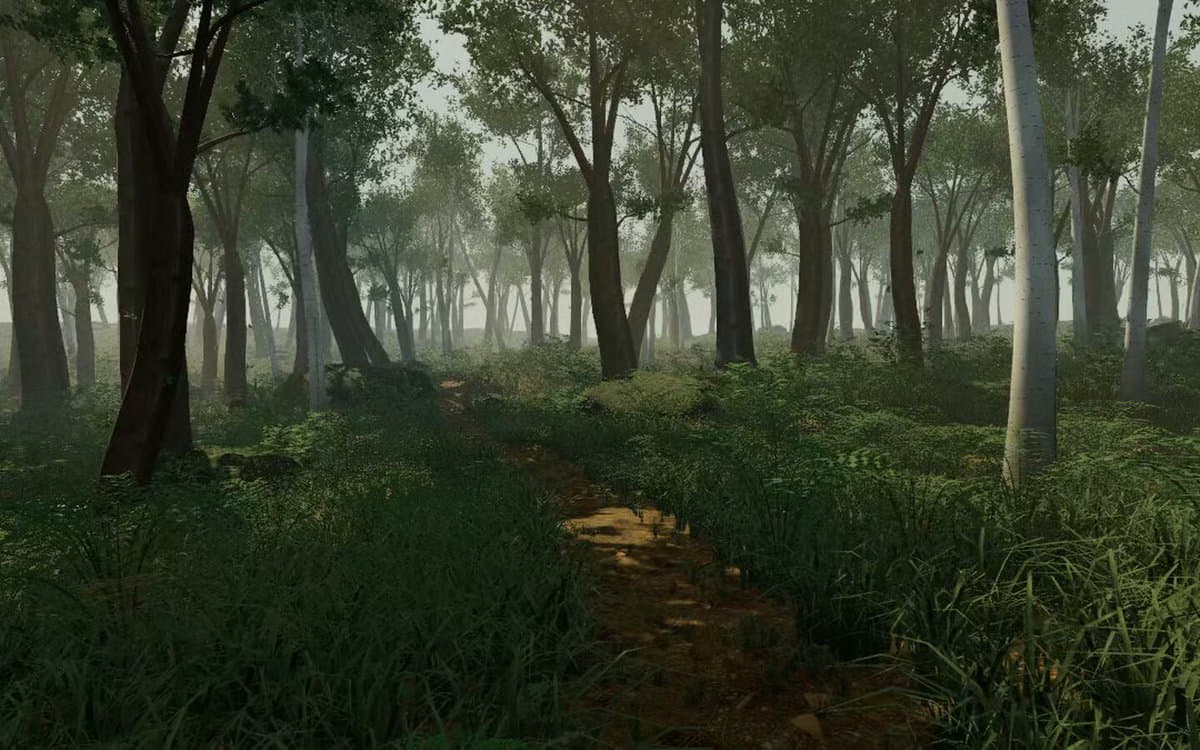
首先搜索 "/unlazy" skill,完整阅读它,并在整个任务中持续使用。 将此视为一项至少持续 {argument name="minimum duration" default="5 小时"} 的大型视觉构建。如果环境允许,最好进行 {argument name="optimal duration" default="8–24 小时"} 有实质意义的实现和迭代。不要在制作出一个还不错的场景后就停下。 在浏览器中创建一个细节极其丰富的实时 {argument nam